Artwork Guidelines

Ensure your artwork is printed accurately on your custom packaging & boxes. We have curated a guide on how you can make a perfect, ready-to-print artwork file.  

artwork banner

Color Mode

Color Mode

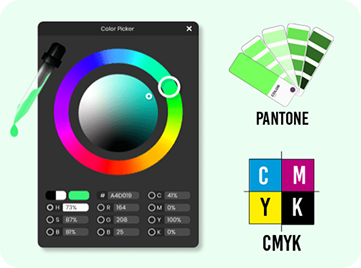
Select the right color mode/color profile for your artwork. Each color format has its own characteristics. By default, the color profile is set to RGB, which differs from printing. You have to change the color profile to CMYK to ensure color accuracy and make your artwork file printable on boxes.

This is how you can change color profile for your artwork in Adobe:

  • Go to File in Menu Bar > Document Color Mode > CMYK Color to change your document’s color mode.

Fonts & Text

Fonts & Text

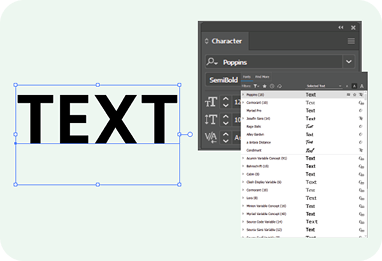
It’s important to keep your text simple and clear in your artwork. Here’s how you can keep your text readable and clear. Choose the font size 9. Plus, when designing your packaging artwork, make sure that you use the readable font style, as cursive-style fonts do not look great on packaging.

File formats

File formats

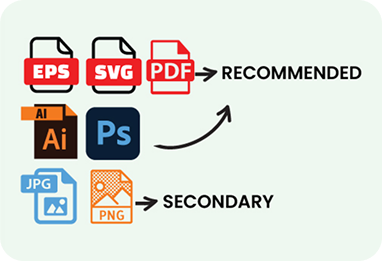
Artwork files should be submitted in high-resolution, print-ready formats such as PDF, TIFF, or EPS to preserve their quality and integrity during printing. If your design includes images or non-vector elements, you can provide them as high-resolution JPEG or PNG files with a minimum resolution of 300 dots per inch (DPI) to ensure optimal print clarity.

Resolution

Resolution

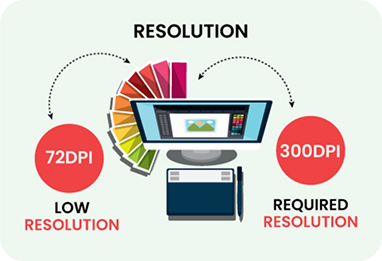
To achieve high-quality results, ensure your artwork is at a minimum resolution of 300 dots per inch (DPI). This resolution maintains clarity and sharpness in your prints, especially for detailed designs and small text. Files with lower resolution can lead to pixelation, blurriness, and an unprofessional appearance. Always check the resolution before submission to avoid print quality issues.

File Organization

File Organization

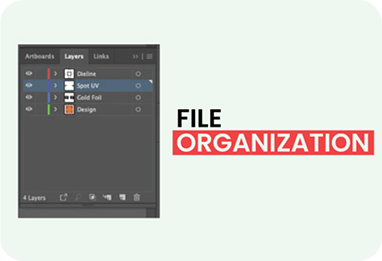
Organize artwork files in a clear, structured manner by using separate layers for different elements such as text, images, and backgrounds. Apply consistent and descriptive naming conventions for each layer to avoid confusion and ensure the correct elements are accurately processed during printing.

Dieline

dieline

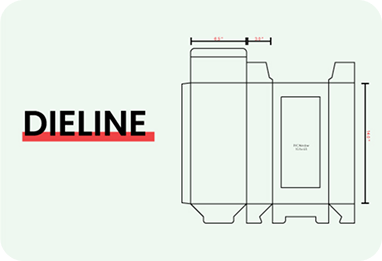
Select the correct dieline for your box and download it. Your artwork must align with the dieline, keeping key elements within the safe area and extending the background to the bleed line. This guarantees accurate cutting and prevents design errors during production.